
Short answerMake your code, upload a square PNG, JPG or SVG of your logo, and keep it to about 20% of the code’s width. Use a dark code on a light background, leave the three corner squares clear, and scan the final design on two phones before you print. If it won’t scan, shrink the logo first.
Before you start: prepare the logo file
Most problems with branded codes start with the logo file, not the code. A few minutes here saves a reprint later.
- Use a square version. A wide wordmark has to shrink to fit a square space, and the text becomes unreadable. If your brand has a symbol or monogram, use that instead of the full name.
- Prefer a transparent background. A PNG or SVG without a white box around it sits cleanly on the badge behind it.
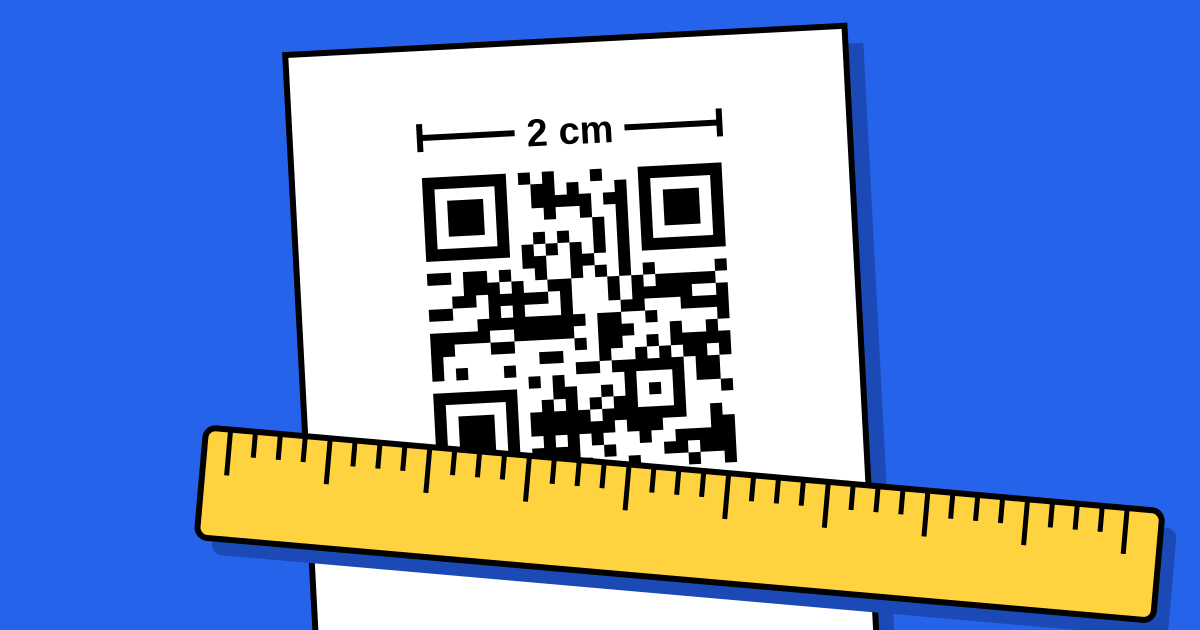
- Keep it simple. Thin lines and small text disappear when a code is printed 2–3 cm wide. A bold shape reads better than a detailed one.
- No logo file to hand? On QR Code Planet you can use up to three initials or pick an icon (Wi-Fi, café, shop and others) instead.
Step by step on QR Code Planet
- Make the code first. Open the generator and enter your content: a link, Wi-Fi details, a vCard or any other type.
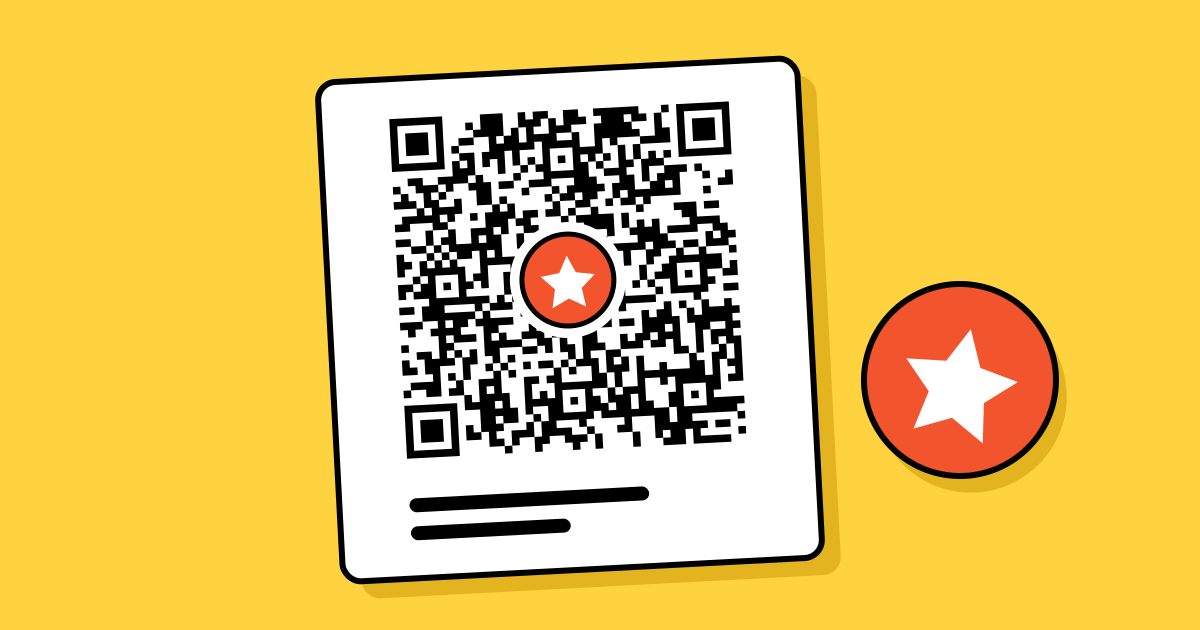
- Open the Logo tab in the Style step and upload a PNG, JPG or SVG. The generator raises error correction to High as soon as a logo is added.
- Set the size. The slider runs from 10% to 35% and starts at 20%. Stay at 25% or below; above that the scan check warns you that the logo covers too much.
- Choose a badge shape: square, rounded or circle. Pick the one that matches the shape of your logo.
- Match your colours. In the Colours tab, use your darkest brand colour for the code and keep the background light.
- Check the scan check panel. It looks at contrast, dark-on-light, the quiet zone and logo size, and offers a one-click fix for each warning.
- Download. SVG, PDF or EPS for print; PNG or JPG for screens.
Why the code still scans with a logo on top
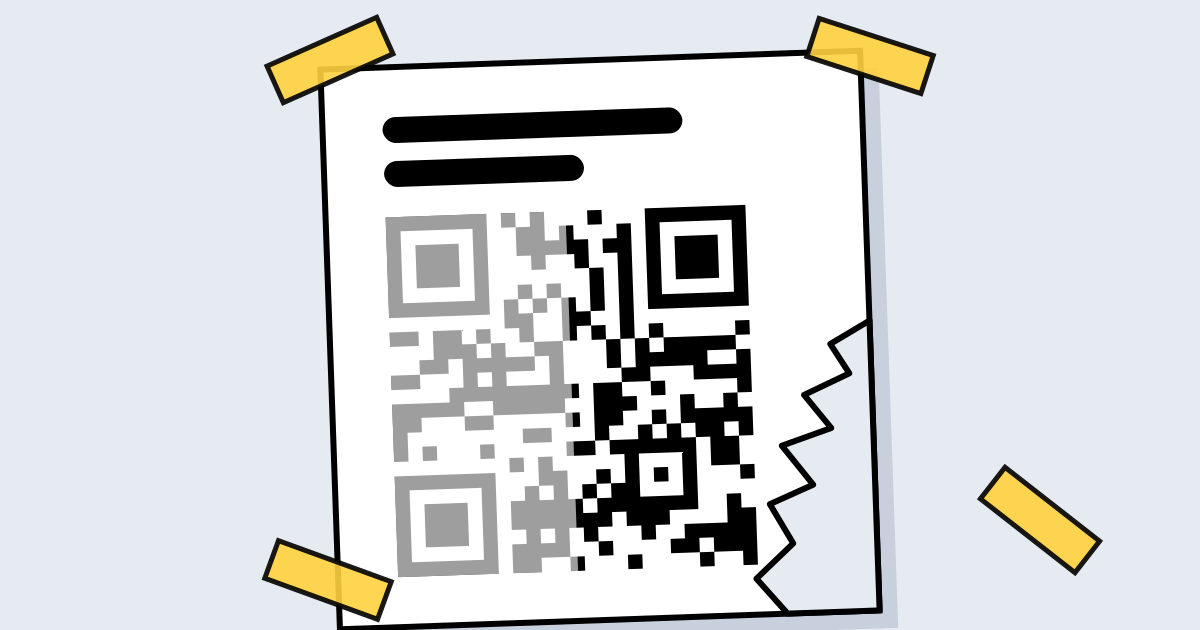
QR codes store extra recovery data, called error correction, so they can still be read when part of the pattern is dirty or damaged. There are four levels, and the highest, H, can restore roughly 30% of the code. DENSO WAVE, which invented the QR code, explains the levels in its error correction guide, and our guide to QR code error correction covers when to use each one.
A centre logo uses part of that recovery capacity on purpose. That’s why size matters: the logo has to leave enough spare capacity for real-world wear, glare and a slightly blurry camera. Keeping it around 20% leaves a safety margin.
Design choices that help, and ones that hurt
Helps
- A dark code on white or cream
- A logo at 15–25% of the width
- Clear corner squares
- An empty margin of about four modules
- A frame with a short call to action, such as “Scan for the menu”
Hurts
- A light code on a dark background
- Pastel colours with weak contrast
- A logo over a corner square
- Text or images crowding the margin
- A long URL in a small static code
The last point is easy to miss. A static code holding a long link has a dense pattern with small modules, so a logo hides more of the important detail. A dynamic code holds only a short link, so the pattern stays simpler and copes better with a logo at small sizes. A free account includes 3 dynamic link codes; paid plans include more.
Troubleshooting a branded code that won’t scan
Work through these in order. Most codes are fixed by the first two.
- Shrink the logo. Drop it to 20%, or 15% for very small prints.
- Raise the contrast. The scan check flags colour pairs below 4:1. Darken the code colour rather than lightening the background.
- Swap inverted colours. If the code is light on dark, switch the two colours. Some scanner apps can’t read inverted codes.
- Restore the margin. Put the quiet zone back to four modules, and keep text and frames out of it.
- Shorten the content or switch to a dynamic code, so the pattern has fewer modules.
- Print it bigger. If it scans on screen but not on paper, the print is probably too small for the distance. The printing guide has sizes for each distance.
Test before you print
The scan check on screen is a good first test, but paper behaves differently. Print one proof at the final size on the final material. Scan it with an iPhone and an Android phone, from the real distance and in the real light. Glossy finishes and curved surfaces cause more failures than logos do.
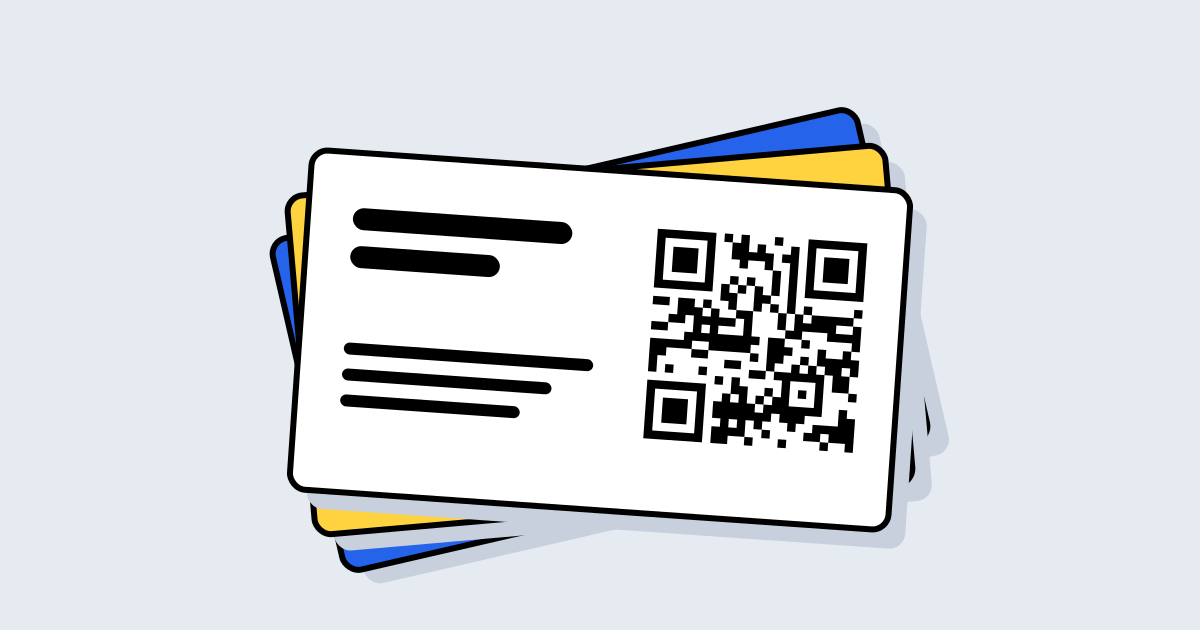
If a logo code is going on a business card, the business card guide covers the small-size layout in more detail. For an overview of logo options and frames, see QR code with logo.
FAQ
Questions people ask
Can’t find yours? A person answers every email within 2 working days.
Email usDoes adding a logo cost anything?
No. Logos work on every plan, Free included, with no watermark. Downloading a code needs a free account.
What’s the best logo size for a QR code?
About 20% of the code’s width. Up to 25% usually works; above that, scans start to fail, and the scan check will warn you.
Can I use a JPG logo?
Yes. PNG, JPG and SVG are all accepted. A PNG or SVG with a transparent background usually looks cleaner than a JPG, which always has a solid background.
Can I change the logo after printing?
No. The logo is part of the printed image. On a dynamic code you can change where the code leads, but not how the printed code looks.