
Short answerFind your exact network name, password and security type, usually on the router label or in its settings. Enter them in a Wi-Fi QR code generator, download the code, and print it with a “Scan to join Wi-Fi” label. If phones won’t connect, the cause is almost always a typo in the name or password, or the wrong security type.
Step 1: find your network details
You need three things, and each must match the router exactly.
- Network name (SSID). It’s on the sticker on most routers, and it’s the name phones show in their Wi-Fi list. Capitals, spaces and punctuation all count: “Cafe Guest” and “cafe guest” are different networks. Names are 32 characters at most.
- Password. Also on the router sticker, unless someone changed it. If you aren’t sure it’s current, check the router’s settings page or ask whoever set it up. WPA passwords are 8 to 63 characters.
- Security type. Most home and business routers use WPA2 or WPA3. Older equipment may use WEP. A network with no password is “open”.
Shortcut on Android: if your phone is already connected, Android can show the network as a QR code from Settings → Network & internet → Internet → your network → Share. Google describes this in its Android Wi-Fi help. That’s handy for a one-off, but a code made in a generator is easier to print, size and label.
Step 2: make the code
- Open the generator with Wi-Fi selected. You can design and preview without an account; downloading needs a free one.
- Type the network name exactly as it appears in a phone’s Wi-Fi list.
- Type the password. Characters such as
;,:and"have a special meaning inside Wi-Fi codes; the generator escapes them for you, so type the password as it is. - Choose the security type: WPA/WPA2/WPA3, WEP, or None for an open network.
- Tick “Hidden network” only if the router doesn’t broadcast its name.
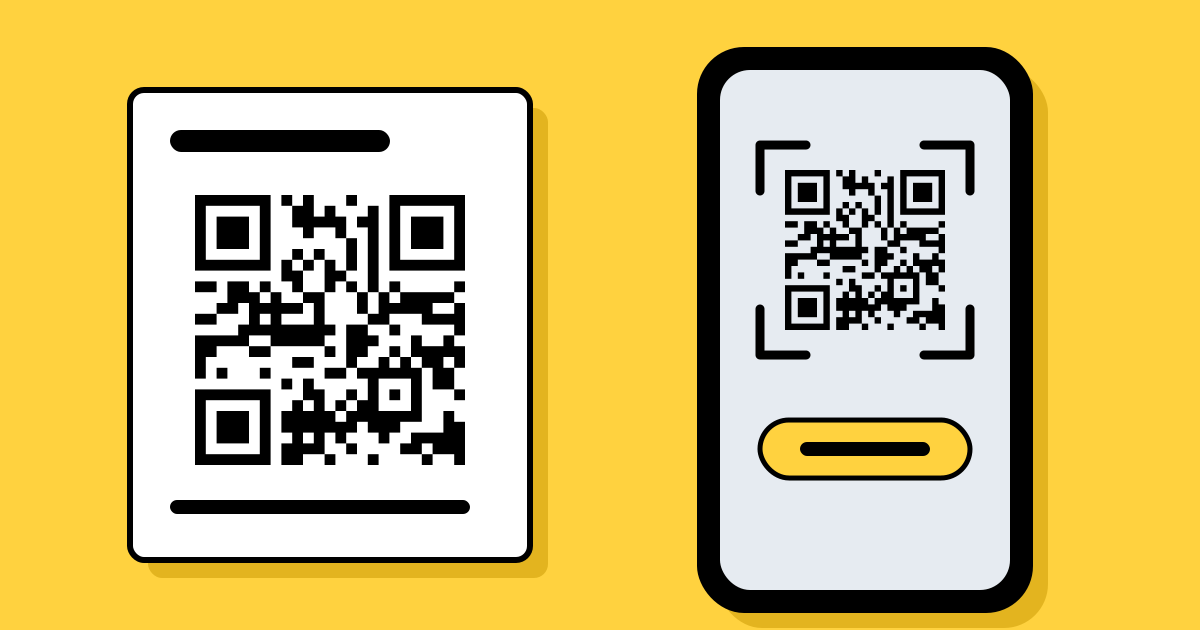
- Add a frame with a short label such as “Scan to join Wi-Fi”, then download SVG or PDF for print, or PNG for a screen.
The code is made in your browser. The password goes into the image on your device and isn’t sent to QR Code Planet.
Step 3: set it up safely
- Use a guest network. Anyone who can see the code can join, and can share a photo of it. Keep tills, cameras and office computers on a separate network.
- Plan for password changes. The password is stored in the pattern, so a new password means a new code. Keep your design saved so reprinting takes a minute.
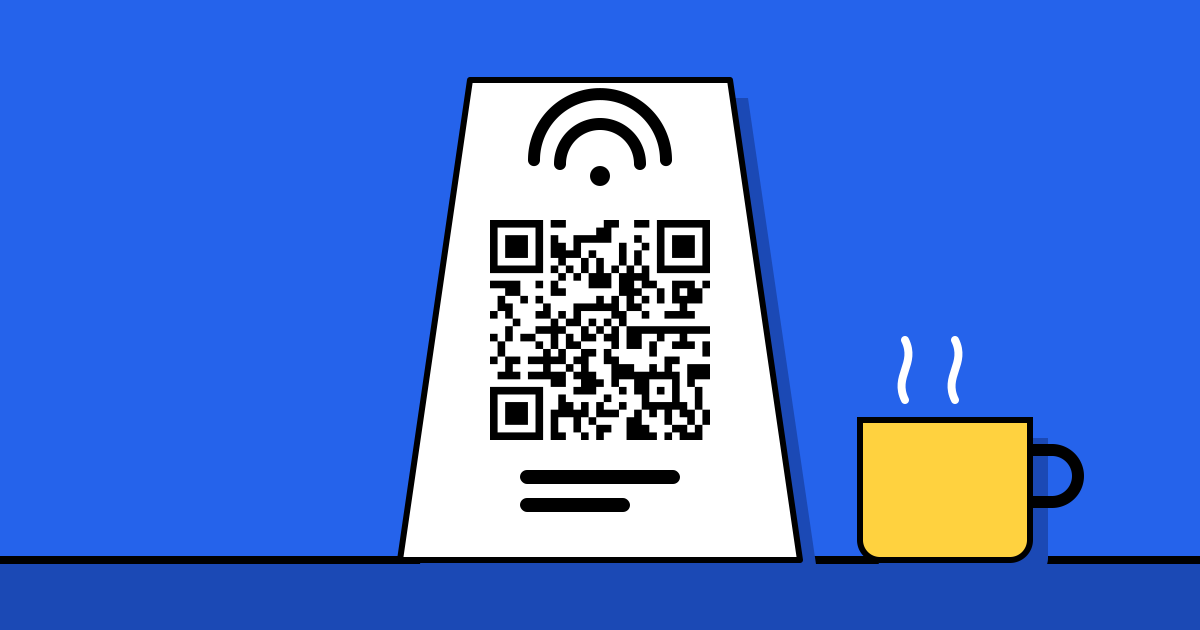
- Put it where people wait: table tents, reception desks, meeting rooms, or a rental’s welcome book. Our page on QR codes for restaurants has more placement ideas.
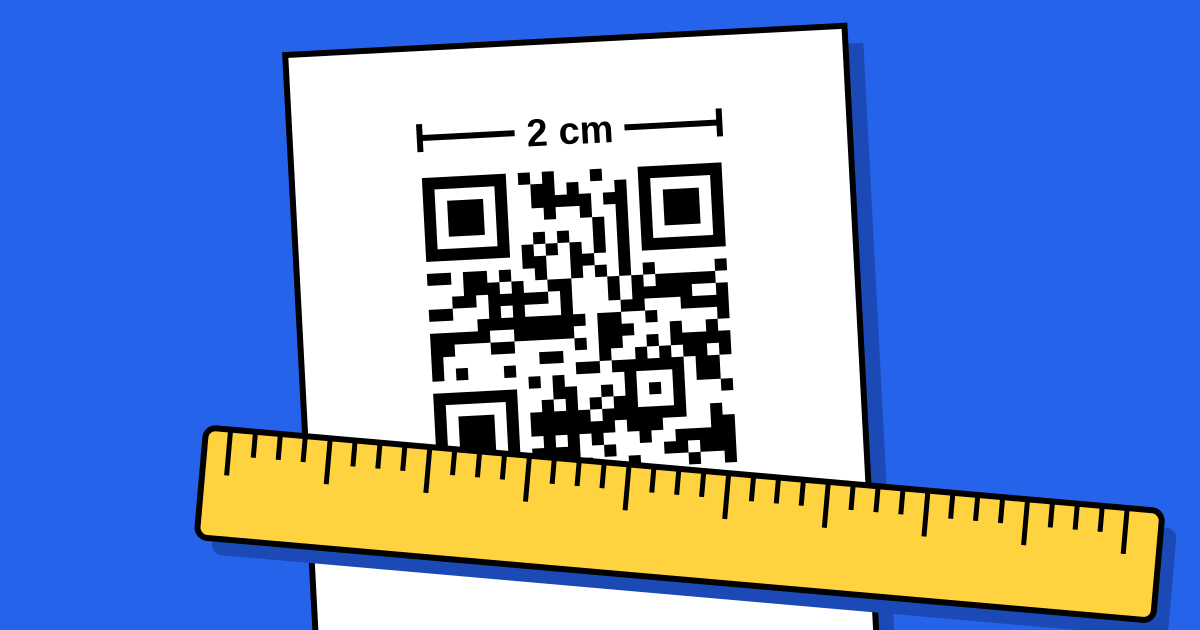
- Size it for the distance. About 2.5 cm wide is enough for a table tent read up close. For a wall sign, see the printing guide.
Troubleshooting: the phone scans but won’t join
| What happens | Likely cause | Fix |
|---|---|---|
| “Incorrect password” or “Unable to join” | A typo in the password, or the password was changed | Check it against the router, then make a new code |
| The phone can’t find the network | The name doesn’t match exactly, or the network is hidden | Copy the name from a phone’s Wi-Fi list; tick “Hidden network” if needed |
| Won’t join, even though the password is right | Wrong security type | Most routers want WPA/WPA2/WPA3; use WEP only for very old equipment |
| Nothing happens when scanning | Print too small, low contrast, or glare | Print larger, use dark on light, and choose a matte finish |
| Some phones join, others don’t | An older phone or a router that limits devices | Test on an iPhone and an Android; check the router’s guest limits |
Before you print a batch, join the network from the printed proof on two different phones. Forget the network on each phone first, or it will connect from memory and hide a mistake.
Many networks or locations?
If you run several sites or floors, each with its own guest network, you can make the codes in one go from a spreadsheet with columns for name, network, password and security type. Bulk creation is part of the paid plans; see the bulk QR code generator.
For a quick overview of what a Wi-Fi code is and where it works, see the Wi-Fi QR code generator page.
FAQ
Questions people ask
Can’t find yours? A person answers every email within 2 working days.
Email usCan I make a Wi-Fi QR code for free?
Yes. Wi-Fi codes are static. The Free plan includes 10 static codes a month, with no watermark and no expiry; you need a free account to download.
Can I change the password without reprinting?
No. The password is inside the printed pattern. A dynamic code can’t help here either, because guests aren’t online yet when they scan.
Why does my phone connect from the code, but my guest’s doesn’t?
Your phone may already have the network saved, so it never used the code. Forget the network and scan again to test properly.
Is it safe to put my Wi-Fi password in a QR code?
It’s as safe as writing it on a card. Anyone who can see the code can join, so use a guest network that’s separate from your business systems.