
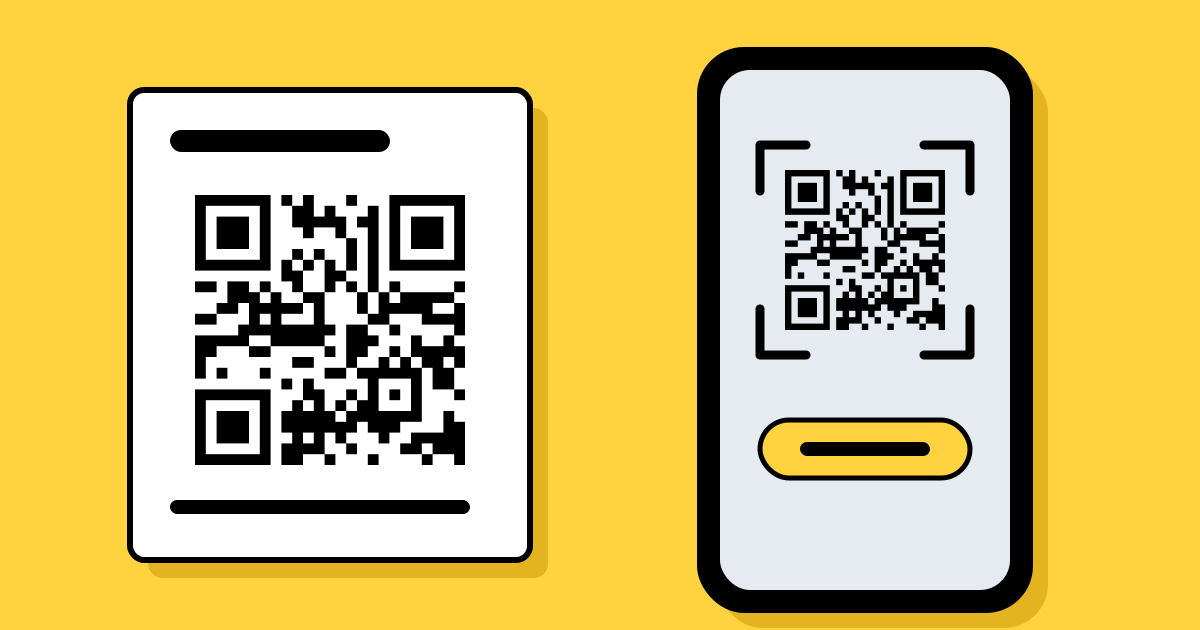
Short answerOpen your phone’s camera, point it at the code so the whole pattern is in view, and tap the link that appears. To scan a code in a screenshot or photo, open the picture and use Live Text on an iPhone or Google Lens on Android. If nothing happens, move back a little, add light and wipe the lens.
On an iPhone or iPad
- Open the Camera app and use the rear camera in Photo mode.
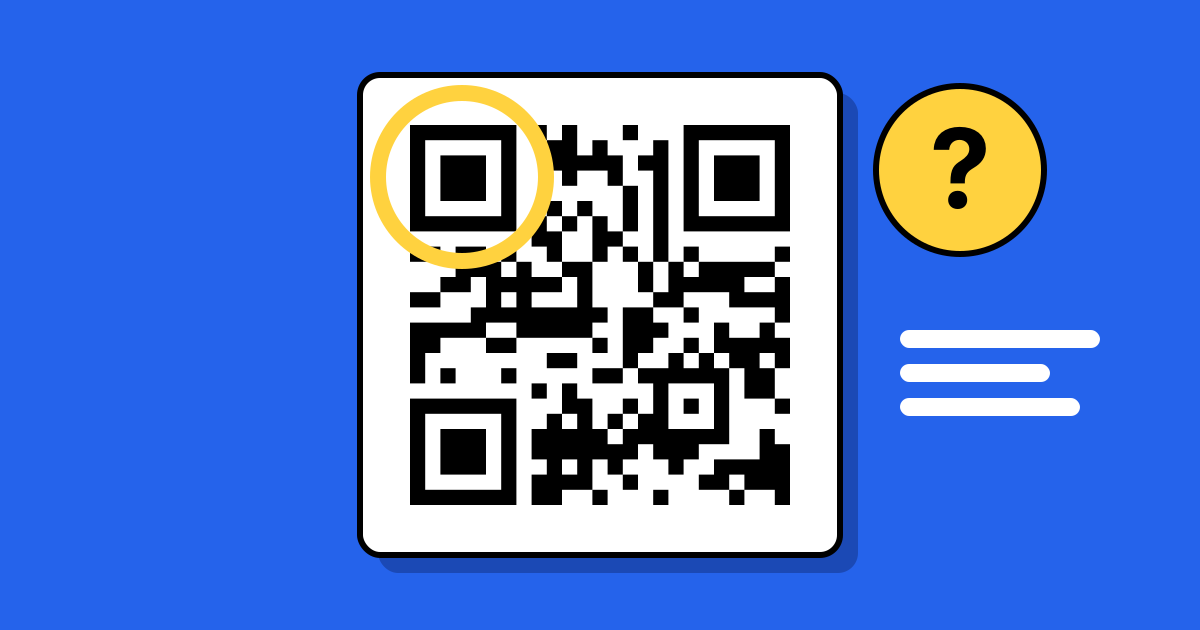
- Point it at the code so the whole pattern, including its white margin, is on screen. You don’t need to take a picture.
- Tap the yellow link that appears under the code.
If no link appears, open Settings → Camera and switch on Scan QR Codes. There is also a Code Scanner you can add to Control Center, which is handy in low light because it has its own torch button.
On an Android phone
- Open the camera and point it at the code.
- Tap the link or pop-up that appears.
Most recent Android phones do this in the camera app. If yours doesn’t, use Google Lens: open the Google app and tap the camera icon, or look for a Scan QR code tile in the quick settings you pull down from the top of the screen. The menu names vary a little between Samsung, Pixel and other makers.
From a screenshot or a photo
You can’t point a phone at its own screen, but you don’t have to.
- iPhone: open the picture in Photos, then touch and hold the QR code and choose the option to open the link.
- Android: open the picture in Google Photos and tap Lens.
The same works for a code in an email, a PDF or a message: take a screenshot first, then open it.
On a computer
- A code on a web page: in Chrome, right-click the image and choose the Google Lens search option. It reads the code and shows the link.
- A printed code: on Windows 11 the Camera app has a QR code mode that uses the webcam. On any computer, scanning with your phone and sending yourself the link is usually quicker.
Before you tap
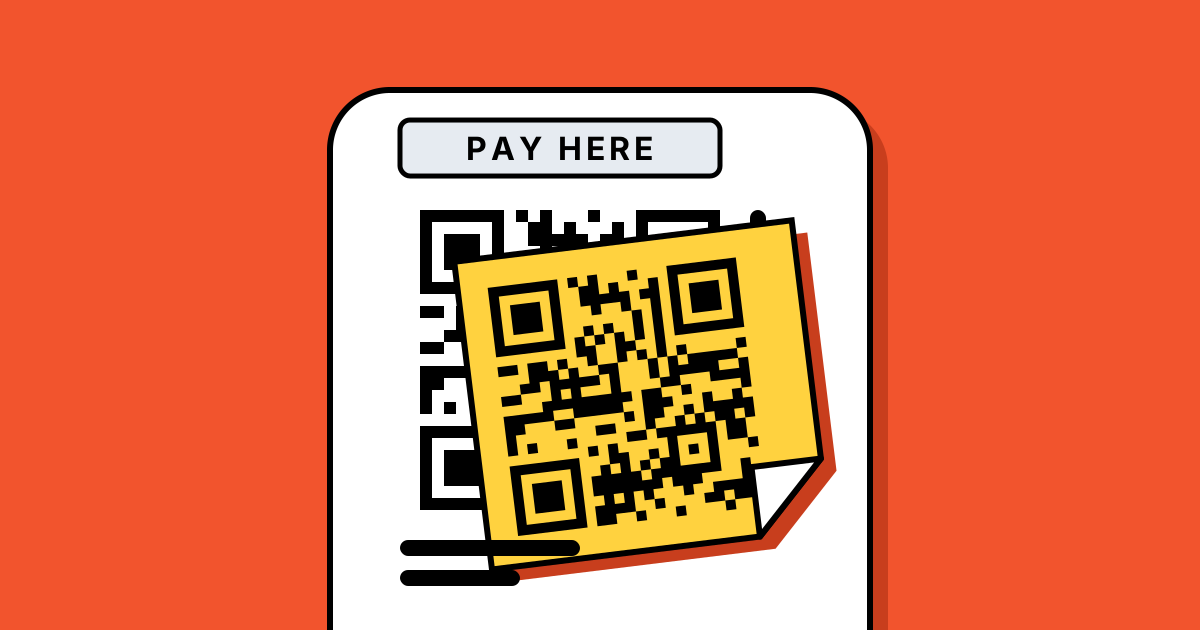
Your phone shows the address before it opens anything. Read it. A code on a parking meter that leads to an odd-looking address, or a sticker placed over another code, is a reason to stop. A QR code can’t harm a phone by being scanned; the risk is the page it opens. More in are QR codes safe?
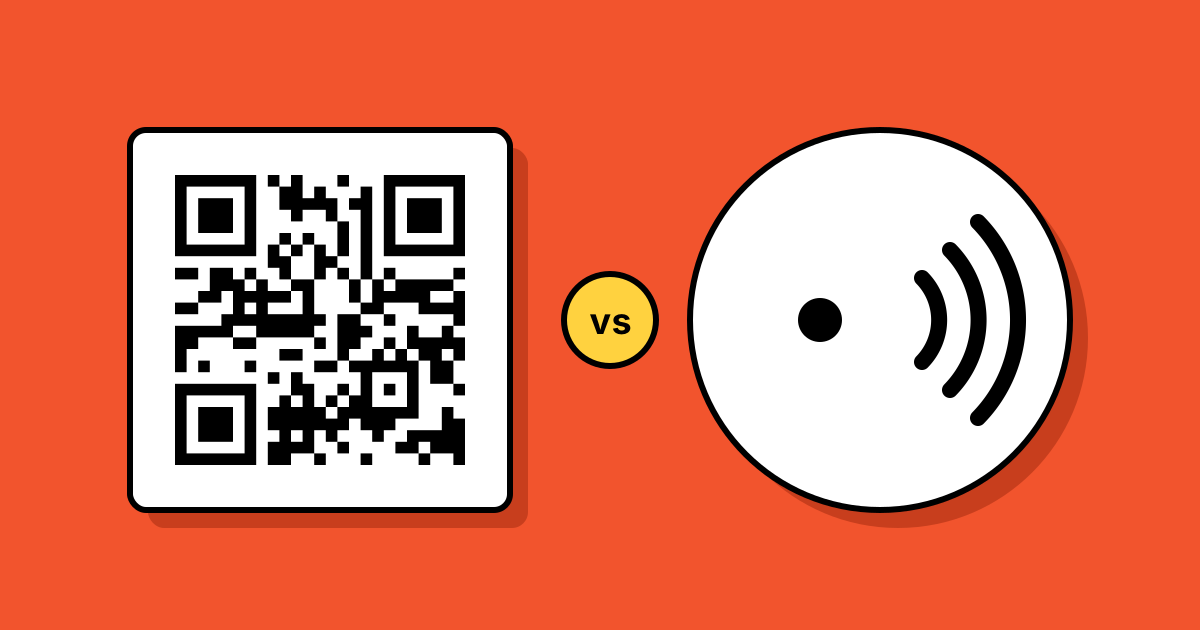
Not every code opens a website. A Wi-Fi code offers to join a network, and a contact card code offers to save a contact. Your phone asks first in each case.
If it won’t scan
| What you see | Try this |
|---|---|
| The camera won’t focus | Move back until the code is sharp, then move in slowly. Too close is the most common cause. |
| Nothing happens at all | Wipe the lens, add light, and check that QR scanning is switched on in the camera settings. |
| Glare on a glossy surface or a screen | Tilt the phone or the code, or turn the screen brightness up. |
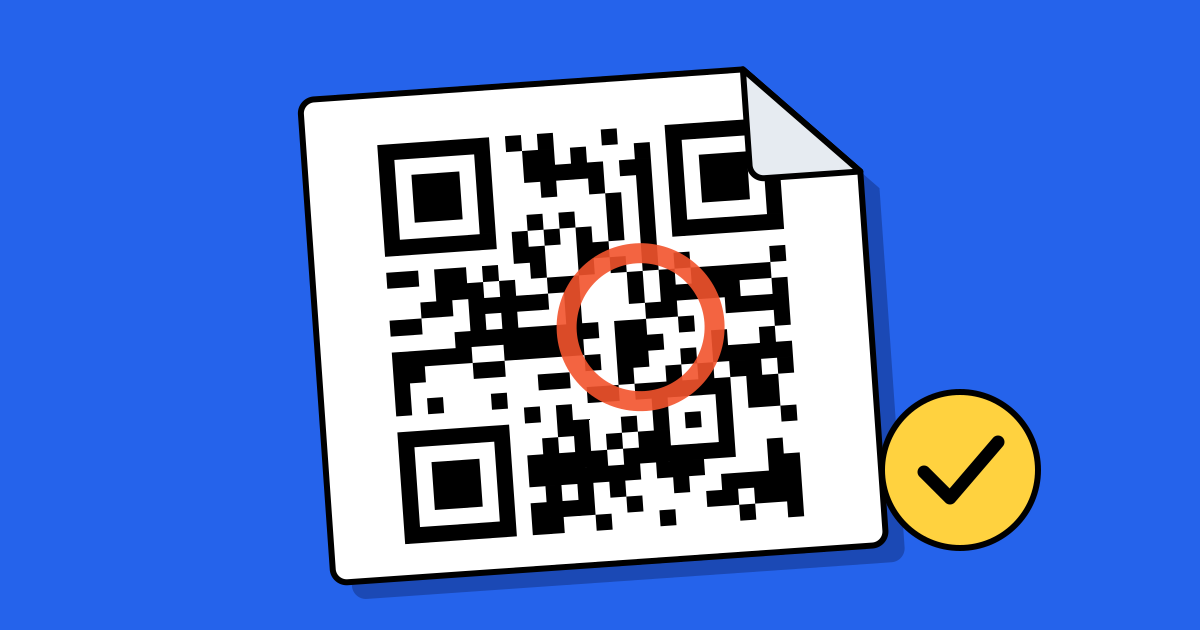
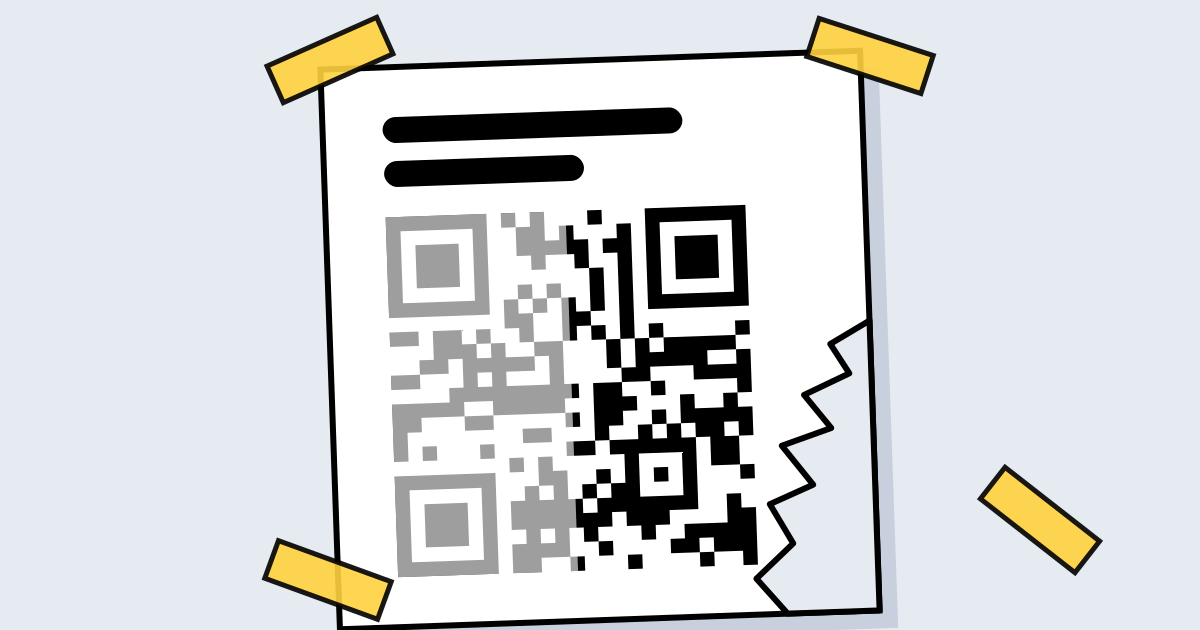
| The code is torn, creased or faded | Flatten it and try from another angle. Codes survive some damage, but not to the three corner squares. |
| A link opens but the page is missing | The code works; its destination has gone. Only the owner of the code can fix that. |
If you printed the code yourself and other people can’t scan it, see why QR codes stop working and the printing guide.
FAQ
Questions people ask
Can’t find yours? A person answers every email within 2 working days.
Email usDo I need an app to scan a QR code?
No. The camera on iPhones and on most Android phones reads QR codes. Google Lens covers Android phones whose camera doesn’t.
Do I need the internet to scan?
Not to read the code. You need a connection to open a web link, but a Wi-Fi code, a contact card or plain text works offline.
Can I scan a QR code that is on my own phone?
Yes. Take a screenshot, open it, and use touch and hold on an iPhone or Lens in Google Photos on Android.
Is it safe to scan a QR code?
Scanning only reads the code. Check the address your phone shows before you tap it, as you would with any link.